

Know what you have, where it is, and what it is worth
One product list every branch and till sells from, and a stock figure that moves with every sale, purchase and transfer. No side ledger, and no spreadsheet to reconcile at month-end.
One product list
Variants such as size and colour, each with its own barcode and stock; nested categories; units that convert (a carton into pieces) on purchase and sales invoices; a photo per product; and barcode labels printed from its page.
Import, and change in bulk
Import your products from a CSV or Excel file with a preview before anything is saved, and export the list whenever you like. Change prices in bulk by a percentage or an exchange rate, with every change logged and reported.
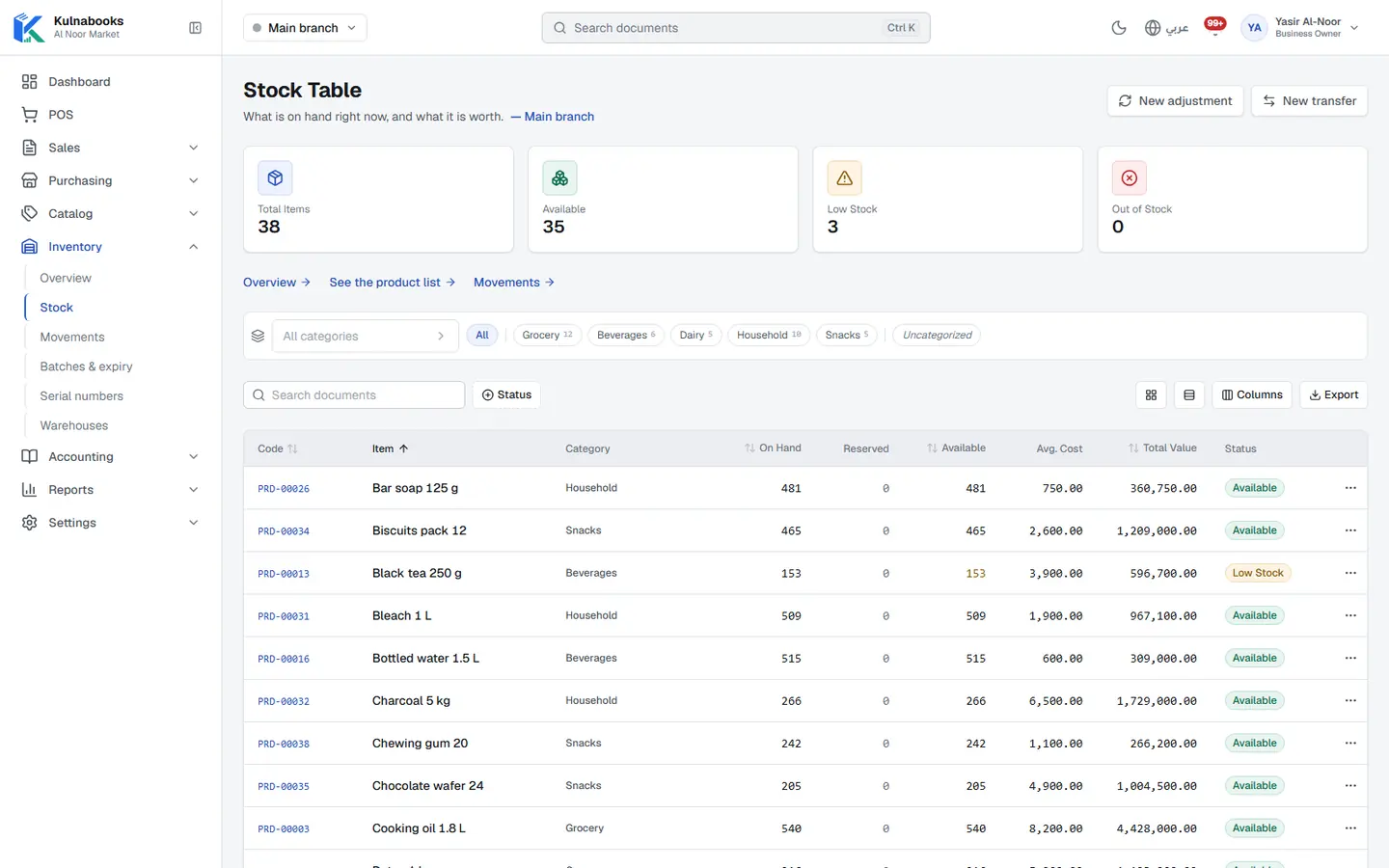
Stock, branch by branch
What is on hand, reserved and available for every product in every branch and warehouse, at its average cost, with the value of what you hold.
Transfers, and adjustments with a reason
Move goods between warehouses and branches, and record every adjustment against its reason: a count, damage, loss, expiry or an opening balance. Every movement shows in the stock movements report.
Expiry and serial numbers
Track batches and their expiry dates: the soonest-expiring batch goes first, expired stock cannot be sold, and the batches screen shows what expires within 30, 90 or 180 days. Record a serial number or IMEI per unit, and look a unit up by it.
Before it runs out
Set a reorder level per product and you are alerted when it drops below it, on the owner’s dashboard and in the low stock report too.
Kulnabooks has no counting screen yet that compares what you counted with what the system expects: if you count a shelf, record the difference as an adjustment with the reason “count”. A transfer between warehouses is recorded in one step, with no “in transit” stage.
And the product list
Code, category, type, unit, cost and selling price, what is available and its status. Filter the list, import it, or add a product from the same screen.
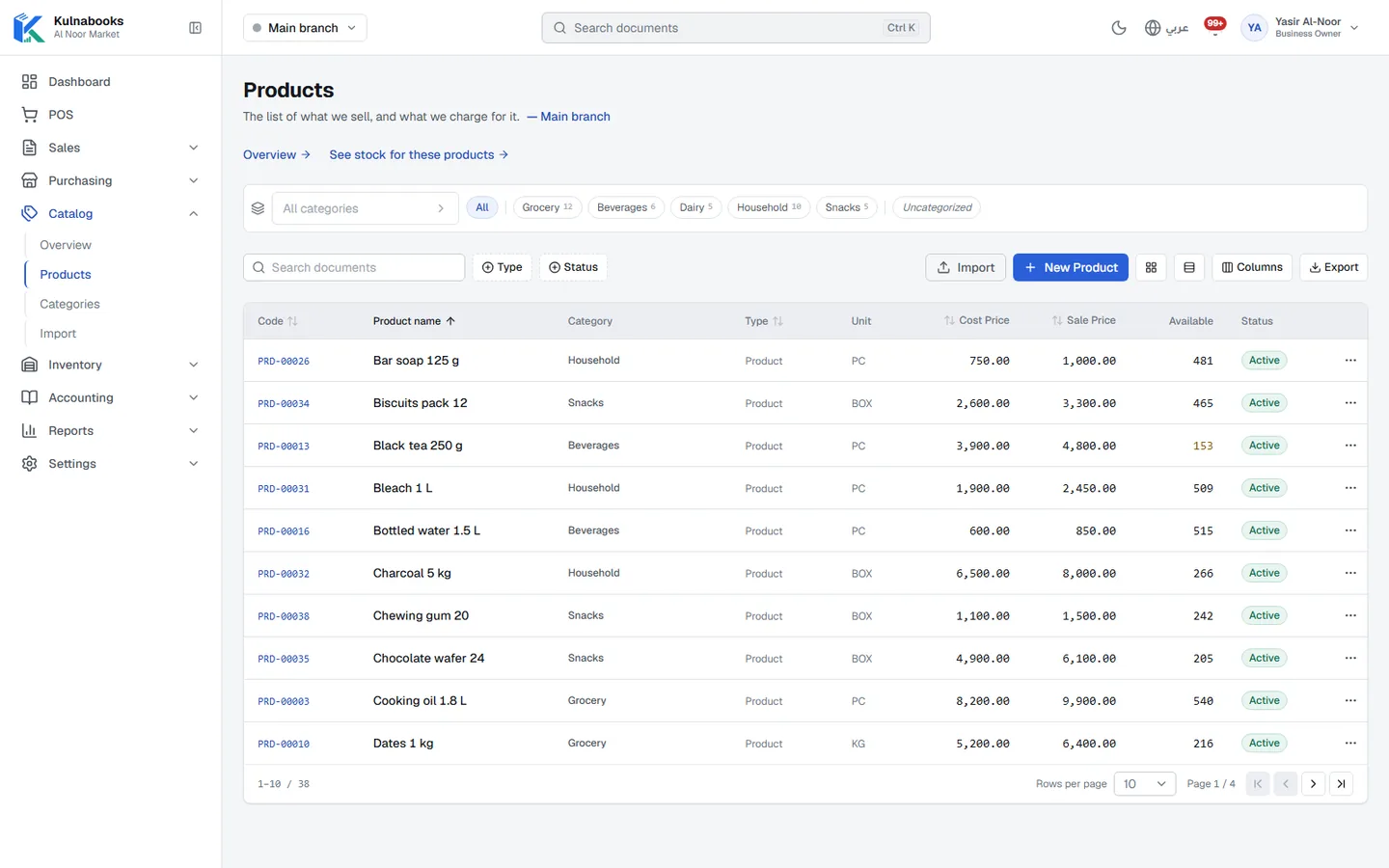
Screens from a demo shop. Figures are sample data.
More of the platform
Purchasing & suppliers
Purchase orders, part deliveries and supplier balancesThe till
Barcodes, receipts and shifts, in a browser or on WindowsCash & bank transfer payments
Each transfer with its reference, and the drawer counted at shift closeOffers & coupons
Automatic or coded discounts, with dates and limitsInvoices & quotes
PDF invoices with a QR code, and quotes that become invoicesCustomers & credit
A credit limit for each customer, and a PDF statementCounter hardware
Thermal printer, barcode scanner and cash drawerAccounts
Entries that post themselves from every sale and purchaseReports & numbers
The owner’s dashboard, and reports you filter and exportBranches & team
Each branch its own figures, each person their own permissions
Open your shop in Kulnabooks
Sign up, name your business and your first store, and start adding products.